Dynamic styles allow the user to apply styling to any string.
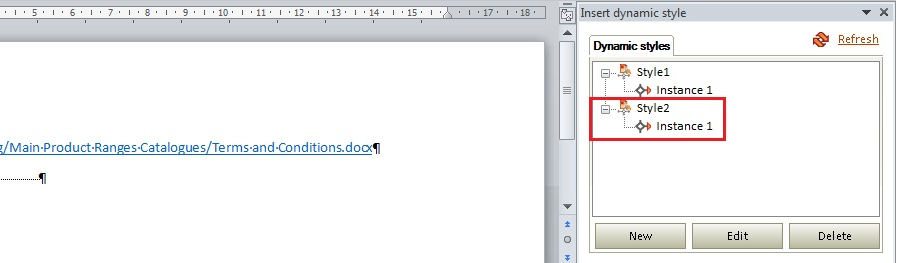
- To access the Dynamic Styles pane, click on the “Dynamic Styles” button.

- To add a Dynamic Style, highlight the string it should be applied to, then click on the “New” button.
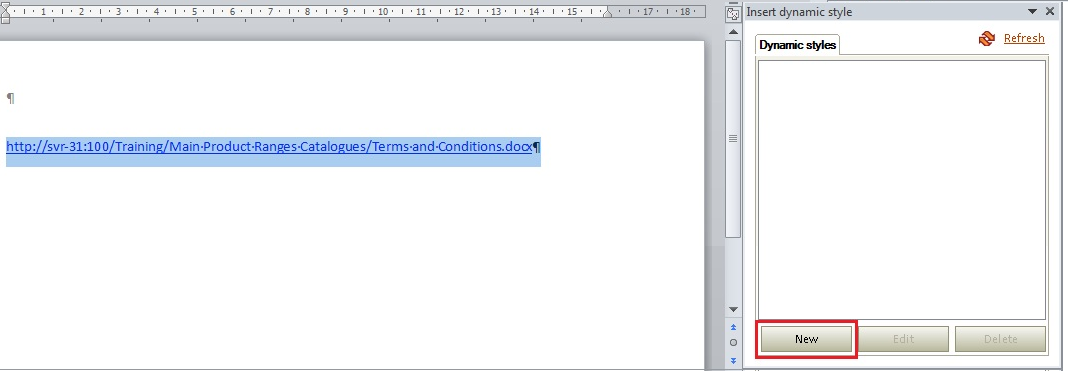
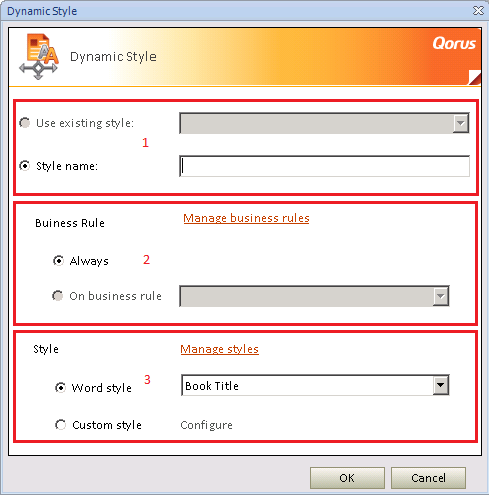
- In the Dynamic Styles window, the options are broken up into logical sections:
- Who (1) - Which Style to apply
- When (2) - When to apply it
- How (3) - What styling to apply.
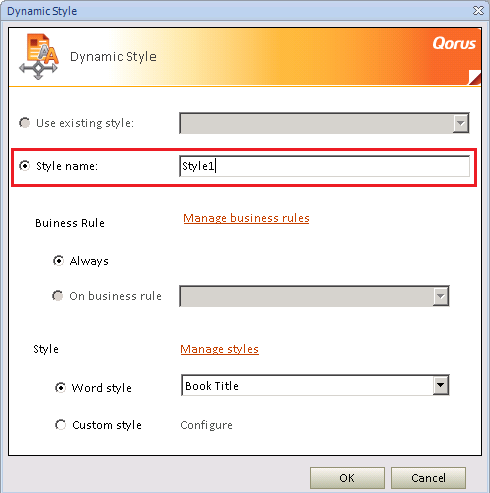
- Create a new style by clicking on the “Style Name” radio button and then giving it a unique name.
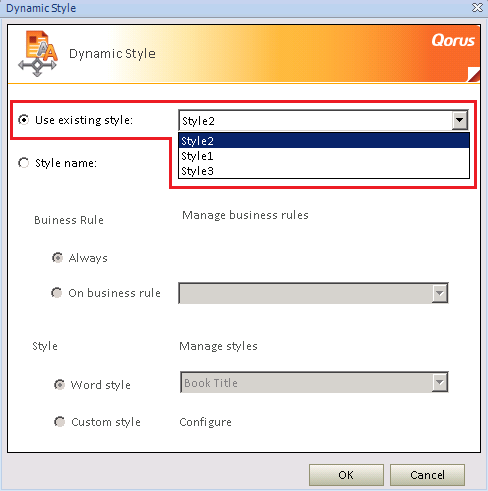
- If the style already exists, it can be re-used by selecting the “Use Existing Style” radio button then selecting from the available styles that have been previously been created.
Note:
This can only be applied when creating a new Dynamic Style, not when creating a Dynamic Style when it is based on an existing one.
- Once happy with the selection of customizations, click “Ok” to add the Dynamic Style to the Dynamic Styles right side pane.
Related Articles:
- For more information on applying Business Rules in Dynamic Styles, please read the article located HERE.
- For more information on setting Font Styles in Dynamic Styles, please read the article located HERE.
Comments